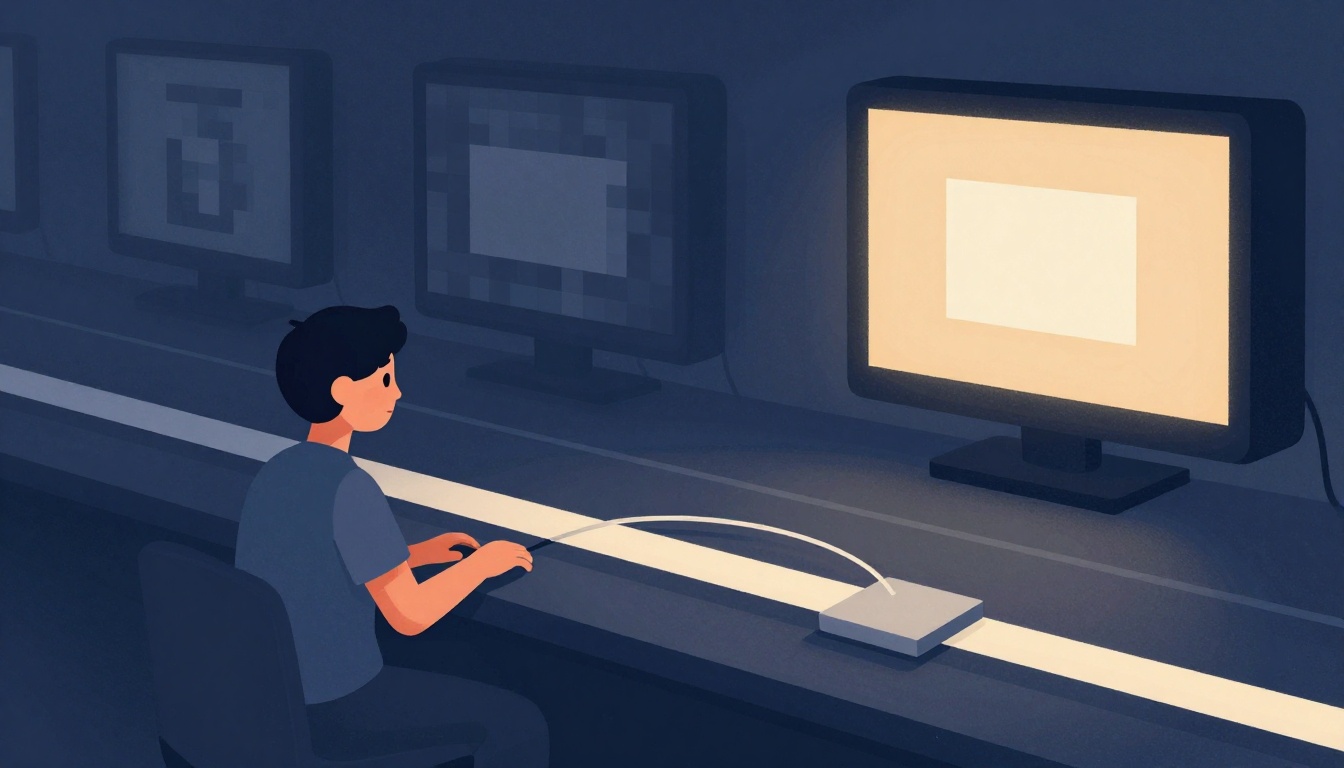
You spent hours refining prompts, tweaking motion parameters, and selecting the perfect AI-generated clip. You export it, deliver it to the broadcaster, and it comes back rejected.
This isn't a creative failure — it's a technical one. Most AI video generators output at 720p or 1080p with 8-bit color depth. Broadcasters require 1920x1080 resolution at specific bitrates, 10-bit 4:2:2 chroma subsampling, and strict adherence to the Rec. 709 color space defined by the ITU-R. The gap between what AI produces and what broadcasters accept is real, but it's entirely solvable with the right approach.
Here are the five most common mistakes producers make when upscaling AI video for broadcast — and exactly how to fix each one.
What is the minimum video bitrate typically required for HD broadcast delivery?
Select one answer.
Mistake 1: Jumping Straight to 4K
The most common error is cranking the upscaler to maximum resolution in a single pass. When you ask an AI model to go from 720p directly to 4K, the neural network has to invent roughly 85% of the pixels from nothing. The result is soft, hallucinated detail that looks unnatural on a calibrated broadcast monitor.
Fix it: Upscale in stages. Go from 720p to 1080p first, then to 4K if the project requires it. Each pass gives the model a smaller resolution gap to fill, producing cleaner edges and fewer artifacts. Think of it like scaffolding — you build one floor at a time.
Mistake 2: Ignoring Broadcast Delivery Specifications
Broadcasters don't just check resolution. They check bitrate, codec, chroma subsampling, audio loudness, frame rate, and even the exact frame where your video starts. The North American broadcast specification requires ProRes 422 HQ or XDCAM HD 422 codecs, 4:2:2 chroma, and audio leveled to -24 LKFS. Deliver a file with the wrong specs and it gets rejected before anyone watches a single frame.
Fix it: Download the delivery spec sheet from your broadcaster before you export. Match your upscaler's output settings to those requirements — not to what looks good on your editing monitor. When in doubt, export a ProRes 422 HQ master and transcode from there.
Mistake 3: Over-Sharpening for an Artificial "AI Look"
AI upscalers are aggressive by default. Crank the detail slider too high and you get crispy edges, waxy skin textures, and visible halos around high-contrast lines. Broadcast QC operators are trained to spot these artifacts, and they will flag your clip.
Fix it: Use conservative sharpening values — start at 30-40% and adjust downward. Apply a subtle Gaussian blur or noise reduction after upscaling to soften the algorithmic edge. The goal is footage that looks like it was shot natively at the target resolution, not computationally stretched.
Mistake 4: Forgetting About Bit Depth
Many AI video generators produce 8-bit color internally. Broadcast standards demand 10-bit depth for smooth gradient rendering and clean chroma key compositing. Exporting an 8-bit file into a 10-bit container doesn't add color information — it just inflates the file size while failing QC.
Fix it: Check your source footage's bit depth before you start the upscale pipeline. Use an upscaler that supports 10-bit output. If your source is locked at 8-bit, apply temporal noise reduction and dithering during the upscale pass to simulate the color fidelity broadcast inspectors expect.
Mistake 5: Neglecting Temporal Consistency
Your upscaled clip might look flawless frame-by-frame. Play it back at 24 fps and the problems appear: flickering edges, pulsing sharpness, and surfaces that shimmer like heat haze. This is a temporal consistency failure — the AI model processed each frame in isolation instead of treating the sequence as a continuous stream.
Fix it: Choose upscaling models that explicitly optimize for temporal coherence. Process short segments of 5-10 seconds and preview at full speed before committing to a full render. Follow up with a temporal denoiser in your NLE to smooth out frame-to-frame variations. Consistent motion is what separates broadcast-ready footage from obvious upscales.
Test Your Knowledge
Before you start your next upscale, check your understanding of broadcast delivery requirements.
What is the minimum video bitrate typically required for HD broadcast delivery?
How the Resident Expert Can Help
Getting AI-generated video past broadcast QC requires more than good prompts — it demands production experience, codec knowledge, and a rigorous finishing workflow. Parallax Black delivers exactly that. Led by visual artist Adam Norton, the Dallas-based studio combines 25 years of high-end VFX expertise with an AI-accelerated pipeline to produce cinematic brand content that meets professional broadcast standards. From character consistency to color-accurate exports, they handle the technical complexity so your story reaches the screen the way you intended.